How to Connect Frizerly to Your WordPress Site

Connecting Frizerly with your WordPress site enables automatic publishing and streamlined content management. Whether you're using WordPress.com or a self-hosted version, integration is quick and secure.
Step 1: Log into Your Frizerly Account
Visit https://app.frizerly.com and sign in with your Frizerly credentials!
Step 2: Go to WordPress Settings
After logging in, navigate to https://app.frizerly.com/settings/wordpress.
Step 3: Enter Your WordPress Username (Different from Application Password Name)
Depending on your WordPress setup:
- WordPress.com: Find your username at wordpress.com/me/account
- Self-hosted WordPress: Go to your WordPress dashboard → Users → Your Profile
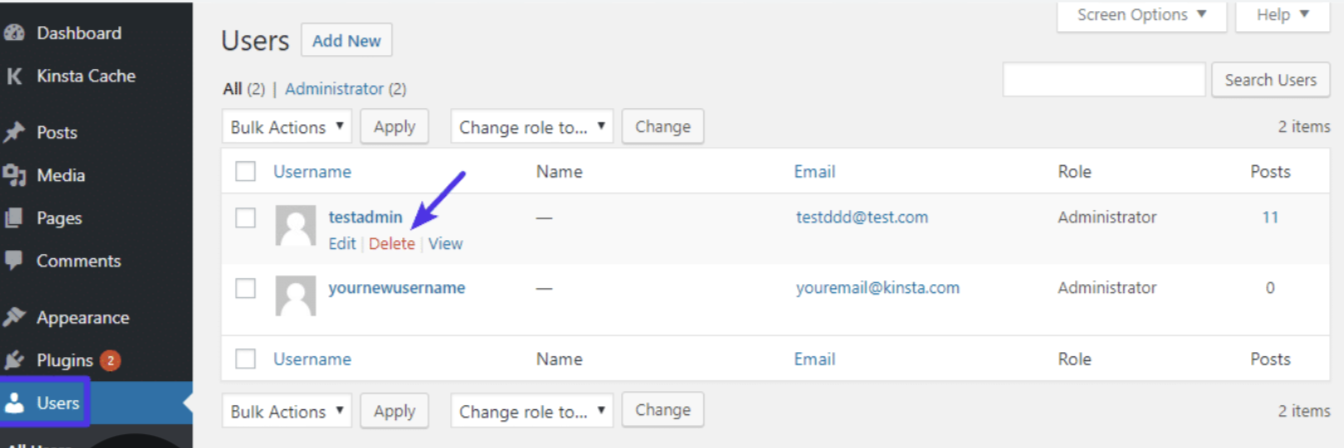
Copy your WordPress username and paste it into the Frizerly WordPress settings page.
Step 4: Verify User Permissions
Ensure the WordPress user you're connecting has the appropriate role:
- Editor (recommended) or
- Contributor (minimum)
Without proper permissions, Frizerly won’t be able to post content on your behalf.
Step 5: Generate an Application Password (Different from Login Password)
For security reasons, WordPress requires an application-specific password for third-party integrations. This is different from your login password.
Depending on your WordPress setup:
- WordPress.com: Login to your Dashboard → Account Settings → Security → Application Passwords → Add New -> Copy
- Self-hosted WordPress: Login to your Dashboard → Users → Profile → Application Passwords → Add New -> Copy
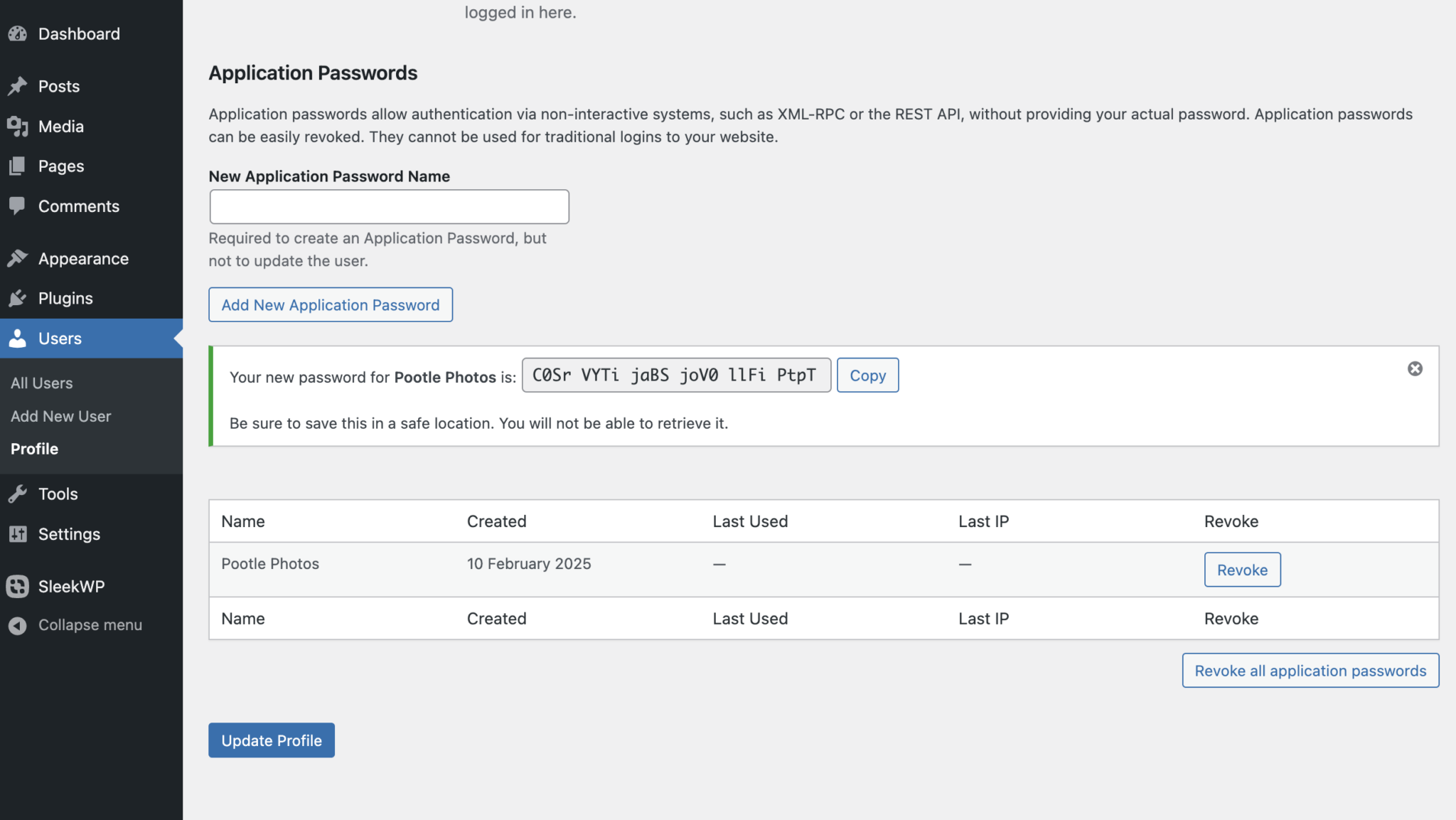
Note: Two-Factor Authentication Might Need to Be Enabled for Applicaiton Passwords to Work. Find instructions below
- WordPress.com: Login to Dashboard → Account Settings → Security → Two-Factor Authentication → Enable
Here is a detailed guide to generate application password
Step 6: Paste the Application Password in Frizerly
Once you’ve generated the password, copy it and paste it into the corresponding field on the Frizerly WordPress settings page. Then click Save.
Step 7: Notify the Frizerly Team
Once all steps are complete, send a quick email to support@frizerly.com. Our team will confirm the setup and activate your integration.
You're all set! If you run into any issues, don’t hesitate to contact us at support@frizerly.com.